How to Set Up Google Nest Mini in Your Smart Home (UAE Guide)
15 October 2026 · Zehra's Nest
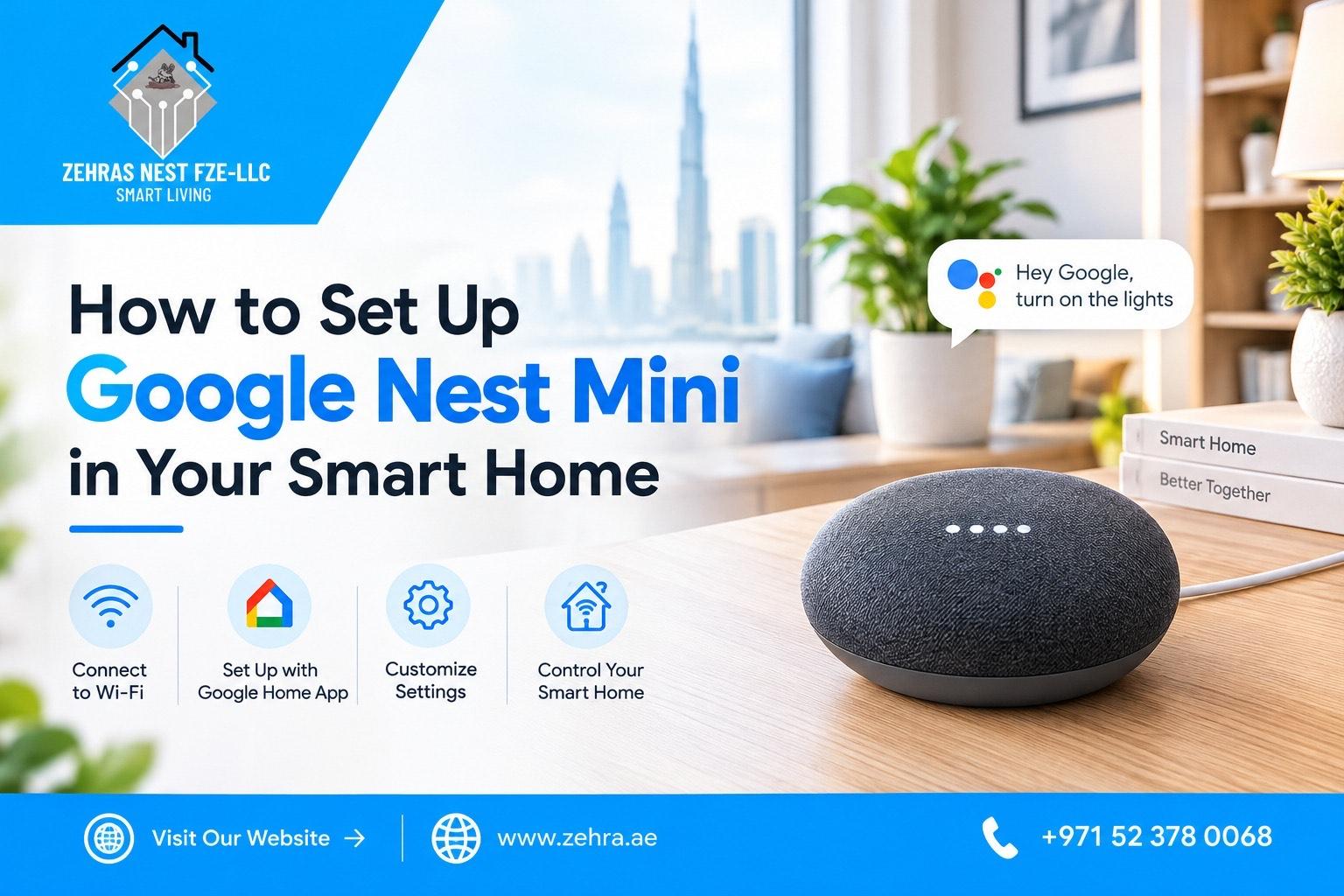
Adding a Nest Mini to most homes is easy. You don't need specialist knowledge for setup. Most steps happen inside the Google Home app. The process usually takes only a few minutes.
Before starting, think about where it will sit. Choose somewhere you naturally spend time. Keep the speaker away from enclosed cabinets. A stable Wi-Fi signal matters just as much.
For Dubai homes placement can vary quite a bit. Apartments often have compact layouts and fewer dead zones. Larger villas may need stronger Wi-Fi coverage. These details can affect your everyday experience.
If you're wondering how to set up Google Nest Mini, start with four essentials. You'll need the speaker, your phone, the Google Home app, and Wi-Fi. Having your Google account ready also saves time. Once those are sorted, the setup becomes much easier.
What You Need Before Starting
There isn't much equipment involved in the process. You'll need your Nest Mini and its power adapter. Your phone should already have Google Home installed. A working Google Account is needed for setup.
Check your phone before you begin. Google recommends keeping the Home app updated. Bluetooth and location permissions may also matter during setup. Your phone should have internet access as well.
It's worth checking your Wi-Fi beforehand. Make sure you know the correct network password. If your internet drops regularly, fix that first. Setup works better with a dependable connection.
Choose a Good Location First
You can move the speaker later if needed. Still, choosing a sensible spot helps from the beginning. Think about where voice commands would actually help. Convenience should guide the decision.
A kitchen counter is one practical option. You can use voice commands while preparing meals. A bedroom can suit alarms and morning routines. A home office may work better for some households.
Don't hide the Nest Mini behind furniture. Keep the speaker somewhere open and accessible. Sound should travel naturally around the room. The device also needs a reasonable Wi-Fi signal.
Plug In Your Nest Mini
Connect the supplied power adapter to the speaker. Then plug it into a suitable wall outlet. The Nest Mini needs constant power during normal use. It does not operate from an internal battery.
Wait for the speaker to power up properly. Don't unplug it during the initial setup. Keep your phone nearby while continuing. This makes the next steps easier to follow.
For the first connection, stay reasonably close. Your router should ideally be nearby too. Once everything works, you can test another location. This approach makes troubleshooting much simpler.
Open the Google Home app
Now open Google Home on your phone. Sign in with your preferred Google account. If needed, create your Google Home environment first. The app will guide you through those initial choices.
Look for the option to add a device. Select the relevant device setup option. Google Home will then search for nearby devices. Your Nest Mini should appear when detected.
Select your speaker once it appears. The app may ask you to confirm information. Follow the instructions shown on your screen. Avoid switching apps during this stage.
Connect the Speaker to Wi-Fi
The next step involves your home network. Select the Wi-Fi network you normally use. Enter the password when Google Home requests it. Then give the speaker time to connect.
Don't worry if this takes a little while. Wireless connections can occasionally take several moments. Keep your phone close during the process. Avoid moving the speaker unnecessarily.
If the connection doesn't work, check everything calmly. Start by confirming the Wi-Fi password. Then move closer to your router. Restarting the setup can also resolve temporary issues.
Finish the Google Home Setup
Google Home will ask for some basic information. You may need to select your speaker's room. Choose the room where it will normally stay. This makes future device management easier.
Room names become useful as your system grows. Imagine adding smart lights in several rooms later. Clear room assignments make voice commands more practical. They also keep the Home app organized.
You don't need to configure everything immediately. Start with the settings you actually understand. Other options can be changed whenever necessary. There's no benefit in rushing through them.
Test Your Nest Mini
Once setup finishes, test the speaker properly. Try a simple voice command first. Listen from different parts of the room. This gives you a better idea about placement.
If the response sounds too quiet, move it. An open surface may work better. Avoid placing it directly behind large objects. Small placement changes can make everyday use easier.
You can also explore the Google Home app. Check whether the speaker appears under your home. Make sure the assigned room looks correct. At this point, your basic smart speaker setup is complete.
Common Setup Problems to Watch For
Sometimes Google Home doesn't find the Nest Mini. This can happen during initial device discovery. Start by checking the speaker's power connection. Then make sure your phone is nearby.
Your phone should also use the intended Wi-Fi network. Check Bluetooth and relevant permissions as well. An outdated app can sometimes cause problems. Updating Google Home is therefore worth trying.
Wi-Fi issues deserve separate attention. Weak coverage can interrupt the connection process. Try moving closer to the router first. If necessary, restart your home network.
If the device belonged to someone else, reset it. A factory reset removes its previous configuration. Afterward, you can set it up again. Only reset after simpler fixes fail.
Google Nest UAE Setup Tips
The basic process is similar for Google Nest UAE users. Your home's layout is what really changes things. Dubai apartments can have very different Wi-Fi conditions. Villas may need more careful network planning.
Think about future devices before expanding your setup. You might eventually add lights or thermostats. Cameras and doorbells are other common additions. Compatibility should always be checked beforehand.
Zehra's Nest offers smart-home products for UAE customers. Our range includes Google Nest and related devices. We also provide smart-home installation services.
If you're ready to add a Nest Mini, buy Google Nest Mini in UAE.. Starting with one speaker can be a sensible approach. You can then see what actually benefits your household.
Building Around Your Nest Mini
A Nest Mini doesn't have to work alone. It can become part of a broader connected home. Google Home supports many compatible smart devices. The exact controls depend on each product.
Smart lighting is one possible addition. A compatible thermostat may suit another household. Smart cameras or doorbells could serve different needs. There is no single setup that suits everyone.
Check compatibility before buying additional products. Some devices support only selected Google Home features. Manufacturer requirements can also change over time. A quick check can prevent unnecessary purchases.
Making Your Nest Mini Useful Every Day
Knowing how to set up Google Nest Mini is only the beginning. The real value comes from how you use it. Place the speaker somewhere genuinely convenient. Keep its Wi-Fi connection reliable too.
For a Dubai home, start with one room. Test everything before adding more devices. This gives you time to understand the system. It also makes future expansion less confusing.
A smart home doesn't need endless gadgets. It needs devices that solve everyday problems. Start small and build around your actual routine. That usually creates a more comfortable setup.
Frequently Asked Questions
Does Nest Mini need to stay plugged in?
Yes. The Nest Mini requires continuous electrical power. It doesn't include a built-in rechargeable battery. Keep it connected during normal operation.
Do I need the Google Home app?
Yes. Google Home handles the standard Nest Mini setup. It also manages compatible connected-home devices. Your Google Account is used during configuration.
Why can't Google Home find my Nest Mini?
Check power, Wi-Fi, Bluetooth, and permissions first. Keep your phone close to the speaker. Updating Google Home may also resolve discovery problems.
Can I move the Nest Mini later?
Yes. You can move it whenever you want. Check the Wi-Fi signal after changing rooms. Then test a few voice commands.
Can Nest Mini control other smart devices?
Yes, if those products are compatible with Google Home. Available controls vary between different devices. Always check compatibility before making another purchase.